 By Yuval Strutti
In 2025, social platforms reward high-quality video more than ever. TikTok, Instagram, and YouTube now prioritize crisp, engaging uploads in their algorithms. If your content looks blurry or sounds off, you risk lower reach and weaker engagement. If you have been asking yourself how to improve the video quality of social media videos, this guide has the answers.
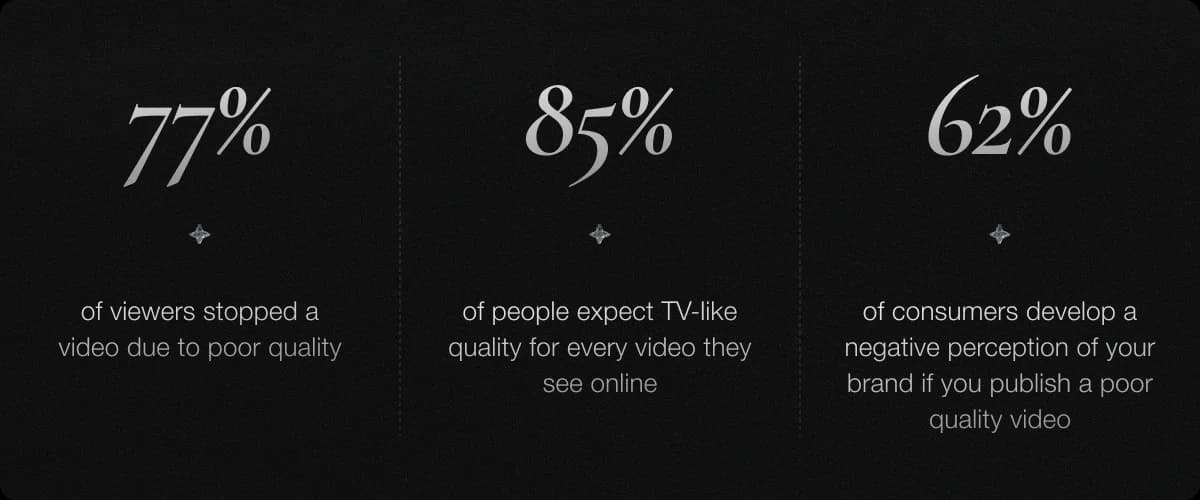
Why do social videos lose quality?
Most creators do not realize the biggest quality drop often happens after upload, not during filming. Compression, export mismatches, app settings, and poor audio all reduce perceived quality.
- Platforms like Instagram and TikTok aggressively compress video
- Incorrect export settings (for example variable frame rate or wrong color space) trigger poor quality
- High-quality upload toggles are often overlooked in app settings
- Audio quality is ignored, and muffled sound lowers perceived visual quality
If your source file is optimized correctly, the platform has less work to do, so your uploaded result stays sharper.
Platform-specific specs (2025)
Each platform has different requirements for aspect ratio, resolution, frame rate, and bitrate. Match your export to platform expectations to minimize destructive re-encoding.
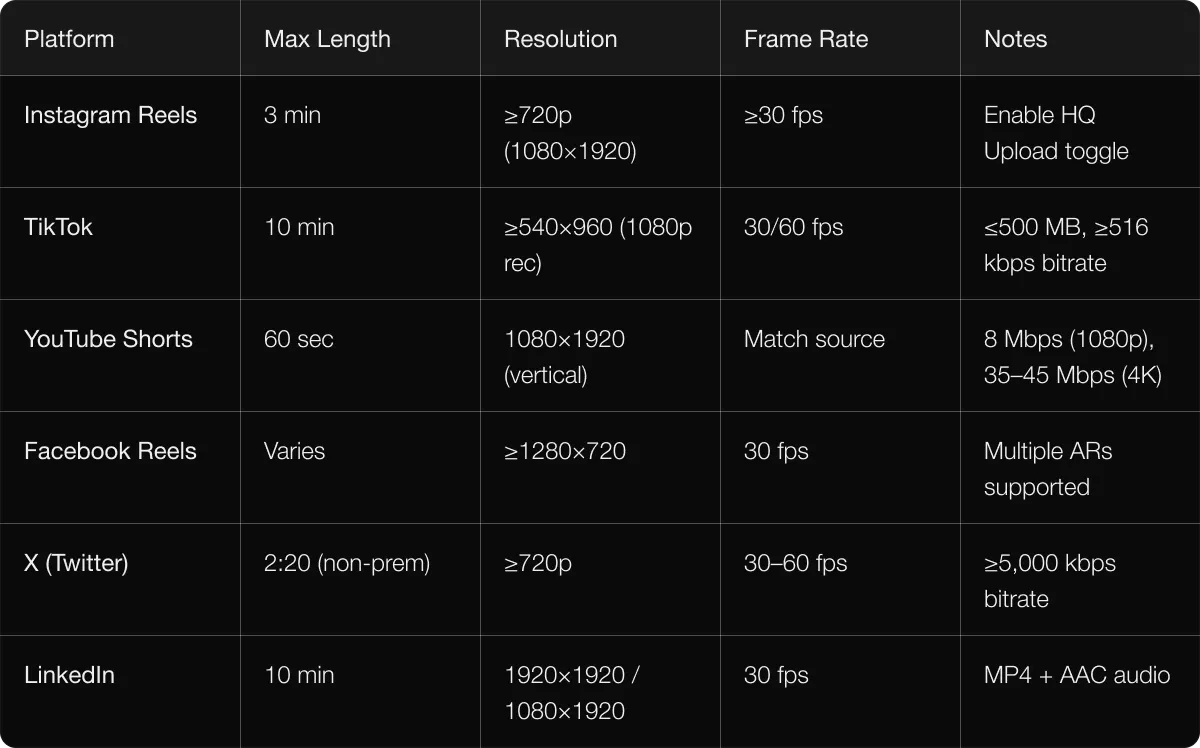
Do not target only minimum specs. Export at the higher safe end for your channel. For example, TikTok at 1080p and about 8 Mbps typically survives recompression better than bare-minimum exports.
How platforms compress video
Even good source footage can look worse after upload because platforms prioritize storage and bandwidth. YouTube tends to preserve high-resolution playback better, while Instagram and TikTok compress more heavily. Uploading oversized 4K files to heavily compressed feeds can backfire.
Advanced note: YouTube commonly uses VP9 or AV1 on higher-quality playback paths, while Instagram and TikTok commonly rely on H.264-style pipelines with stronger compression pressure. Matching export specs usually beats over-sized uploads.
Export settings that prevent compression
Export is the make-or-break stage. Use stable, platform-aligned settings so your video survives compression.
- Most creators: 1080x1920, 30 fps, 6-8 Mbps, AAC audio
- Advanced workflow: constant frame rate, 2-pass VBR or CRF <= 18
- Use SDR Rec.709 for most social platforms; reserve HDR mainly for YouTube where supported
- Avoid export presets labeled Auto when they reduce bitrate aggressively
Pro tips to improve social media video quality
- Shoot in 4K and export in 1080p vertical to preserve detail
- Prioritize lighting before camera upgrades
- Stabilize footage with hardware or software tools
- Always include captions for sound-off viewing
- Upload over stable Wi-Fi to avoid harsher upload-side degradation
Gear vs workflow: what matters more?
For most social-first creators, workflow improvements produce bigger gains than expensive camera upgrades. Better lighting, cleaner audio, and consistent export settings usually beat higher-end hardware with poor workflow discipline.
AI tools in 2025 for better video quality
1) Clean and level dialogue
- Premiere Pro Enhance Speech
- Descript Studio Sound
- Adobe Podcast Enhance
- Solara AI audio improvements as part of full campaign workflows
2) Denoise and upscale soft footage
- CapCut AI Enhancer
- Topaz Video AI 7
- Solara AI footage enhancement within ad generation flows
3) Stabilize and reframe for vertical
- Premiere Auto Reframe
- CapCut Stabilize
- Solara AI vertical-ready multi-channel formatting
4) Captions and accessibility overlays
- DaVinci Resolve 20 animated subtitles
- CapCut Auto Captions
- Premiere captions workflows
5) Extend clips and generate b-roll
- Premiere Pro Generative Extend
- Runway Gen-3
- Luma Dream Machine
- Google Veo 3
6) Commercial-grade avatar ads and automation
Solara AI can create avatar-based ad content, publish across channels, run A/B tests, and reallocate spend toward top-performing variants.
Mobile-first workflows
- CapCut: 1080p, 30 fps, around 8 Mbps for social
- VN Video Editor: set at least around 6 Mbps where available
- InShot: use High Quality and verify frame-rate consistency
Top mistakes to avoid
- Wrong export profile for the destination platform
- Bitrate too low for motion-heavy footage
- Wrong color space (for example exporting Rec.2020 for non-HDR feeds)
- Forcing HDR on platforms that flatten or mishandle it
- Variable frame rate causing audio drift
Recommended presets (2025)
- Beginner: 1080x1920, 30 fps, 6-8 Mbps, AAC audio
- Advanced Premiere: H.264 High Profile, 2-pass VBR, constant frame rate
- DaVinci Resolve: MP4 export with Rec.709

Workflow checklist
- Get inspired by current creator workflows
- Capture in 4K with stable, well-lit shots
- Edit with AI for audio cleanup, stabilization, and captions
- Export with CFR, Rec.709, 1080x1920, and 6-8 Mbps
- Upload with high-quality toggles over Wi-Fi
Final thoughts
In 2025, quality directly impacts reach and revenue. Better workflow beats random upgrades: match platform specs, export correctly, and use AI where it removes bottlenecks. For brands that need both creative output and optimization, tools like Solara AI can turn quality control into a repeatable growth system.
FAQ
- Can Solara improve quality for non-editors? Yes, it automates much of the production optimization process.
- How is Solara different from single-purpose tools? It combines creation, publishing, and optimization in one workflow.
- Do I need expensive gear? No, strong lighting, clear audio, and good export settings matter more initially.
- Should I upload 4K everywhere? Usually no for Instagram and TikTok, usually yes only where high-res playback is preserved.
- What frame rate works best? 30 fps is the default for most social content; 60 fps helps for fast action.